 When your computer was brand new, it seemed so fast. Remember? And now, a couple years later you find yourself mumbling and grumbling because everything just seems so slow. Switching apps seems slow, launching apps takes forever, you are constantly seeing the spinning beach ball.
There are many reasons why a computer can begin to slow down. Looking in the Console is an oft overlooked tool in diagnosing these issues but there are more steps to be taken and in a future post, I’ll delve into that subject in greater depth. For now, one of the first things to do is to check permissions by using Disk Utility. When you launch Disk Utility, you will want to select your boot drive and then click on Repair Disk Permissions. This is a good habit to get in to… you cannot get into trouble by checking permissions every few weeks or so. This periodic task can resolve many quirky issues.
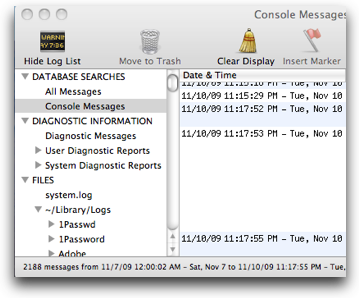
If you are still experiencing sluggish performance another place to check for leads as to what may be contributing to the slowness is your Console app. You’ll find this helpful app in your Applications > Utilities folder. This is where you will find all the logs pertaining to system errors and such.
Frequently you will find a particular error repeating itself hundreds of times a minute. You can literally have thousands of repeating errors occurring for a variety of reasons. This continual logging of repeating errors will consume a lot of processing time and can really slow down your computer. As an example, for the last couple weeks my computer was so slow I was just about ready to take the drastic measure of reformatting my drive, reinstalling Snow Leopard and then migrating all my apps, docs and settings from my backup back over, just to clean things up. But I visited my Console and noticed a repeating error. The error was: “11/10/09 10:23:07 PM – Tue, Nov 10 kernel USBF: 140949.261 << _mouseParameter.button[1]=0x0” and it was repeating over and over again.
Here is what the console log looked like.
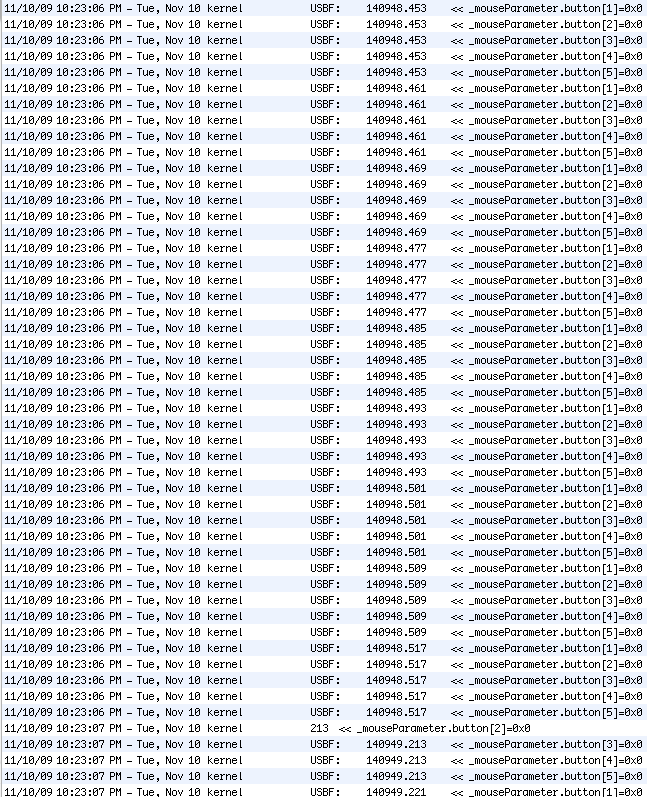
After a bit of investigation and Googling, I concluded it was caused by my Logitech Marble Mouse. I had deinstalled the Logitech Control Center a few weeks ago to resolve another issue I was having and by doing so, the mouse was causing repeating errors that were being logged by the thousands in Console. I reinstalled the Logitech Control Center software and after a restart noticed an immediate improvement in computer response. And the errors stopped completely.
So, before taking drastic steps, do a few basic steps first and make sure checking the logs in Console is one of those first steps.
What all can i delete form activity monitor to make conp run better do u have any ideas.
Activity monitor is simply indicating error messages and processes that are taking place. Deleting something from activity monitor is not going to make your computer run better. It can however indicate where a problem is so that you can investigate an app or process in more detail. It is a troubleshooting tool.
How can I use the information given on ‘Console” and ‘Activity’ on iMac. I downloaded OS X Lion and it seems ok but I have these new features that are on the bottom of the screen and they’re annoying me. How do I remove the icons and what use are they?
Thanks
I’m not yet using Lion so I can’t offer much help.